Home > Passport Photo Requirements > Singapore ID Card Photo 35x45 mm (3.5x4.5 cm)

Singapore ID Card Photo Maker
35x45 mm (3.5x4.5 cm) Size and Requirements


How idPhotoDIY works

Country Singapore
Document type ID Card
Passport picture size Width: 35 mm, Height: 45 mm
Resolution (DPI) 600
Image definition parameters

Head must be between 70 to 80 % of the photograph from the bottom of the chin to the top of the head

Background color White
Printable photo Yes
Digital photo for online submission Yes
Digital photo size Width: 400 pixels , Height: 514 pixels
Photo Paper type matte
Detailed requirements
Last Update: July 26, 2026

Digital Photo Specifications

  • Photo type: Passport-sized digital colour photograph

  • Photo dimensions: 400 × 514 pixels

  • Photo age: Taken within the last three months

  • Accepted file formats: JPG, JPEG, HEIC, HEIF or PNG

  • Maximum file size: 8 MB

Image Quality

  • Use a recent, clear and sharp colour photograph that accurately reflects your current appearance.

  • The image must not be blurred, pixelated or low-resolution.

  • Your facial features must appear natural and must not be altered or enhanced.

Pose and Framing

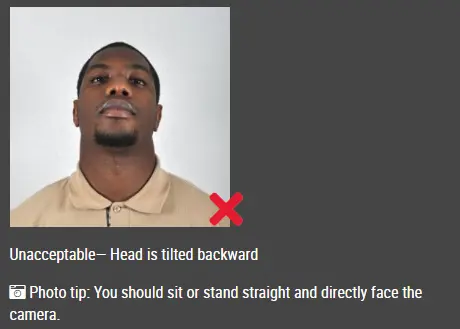
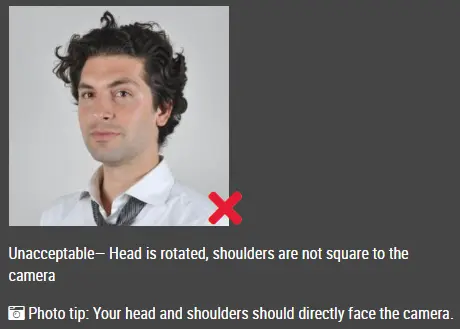
  • Face the camera directly.

  • Keep your head straight, upright and centred.

  • Do not tilt, turn, rotate or lower your head.

  • Your full face, both edges of your face and the top of your shoulders must be clearly visible.

  • Both eyes must be open and clearly visible.

  • Keep your hair away from your eyes.

  • Maintain a natural, neutral expression with your mouth closed.

  • Avoid exaggerated smiles, frowning, raised eyebrows or other unusual expressions.

Background

  • Use a plain white background without patterns, furniture or other objects.

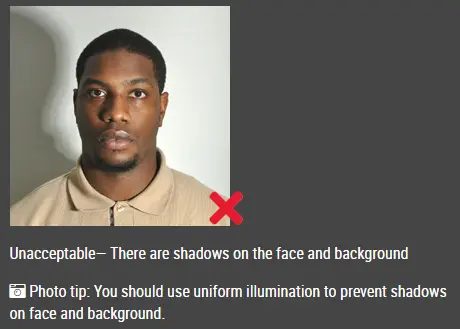
  • The background must be free from shadows.

  • Ensure there is sufficient contrast between your face, hair and the background.

  • Use a light-grey background if white hair or a white religious head covering would blend into a white background.

Lighting

  • Use even lighting across your entire face.

  • Avoid direct flash, glare, reflections, red-eye, uneven bright spots and shadows.

  • There must be no shadows on your face or behind your head.

Glasses

  • Your eyes must be clearly visible through your glasses.

  • Spectacle frames must not cover any part of your eyes.

  • The lenses must not show glare, flash reflections or other reflections.

  • Sunglasses and tinted glasses are not permitted.

  • Removing ordinary glasses may help prevent rejection caused by glare or reflections.

Hats and Head Coverings

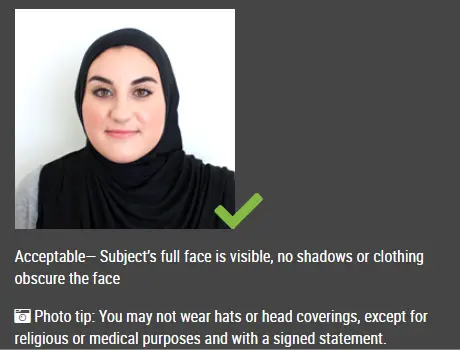
  • Do not wear a hat, cap or other head covering unless it is normally worn in accordance with religious or racial customs.

  • A permitted head covering must not obscure your facial features, eyes or the edges of your face.

  • Your full face must remain clearly visible.

Photo Editing and Alteration

  • Cropping, resizing and preparing the background are acceptable provided they do not change your natural appearance.

  • Do not use skin smoothing, face reshaping, eye enlargement, beauty filters or artificial-intelligence edits that alter your facial features.

  • Do not digitally enhance or modify your appearance.


How to Create a Singapore IC/NRIC Photo Online in 400 × 514 Pixels

Create your Singapore Identity Card photo online using a picture taken with your smartphone or digital camera.

Upload your image to the IDPhotoDIY passport photo maker. The tool will prepare a 400 × 514 pixel digital passport size photo for your Singapore IC or NRIC application.

You can use the photo when registering for your first Identity Card, re-registering at age 30 or 55, or applying for a replacement IC.

Follow these steps to prepare your Identity Card photo with the IDPhotoDIY passport photo maker.

Step 1: Take a photo

Ask another person to take a clear photo of you using a smartphone or digital camera.

Face the camera directly and leave enough space around your head and shoulders for cropping. Avoid a handheld selfie because the close camera distance may distort your facial proportions.

Step 2: Upload the original image

Choose the photo from your phone, tablet or computer.

Step 3: Process the photo

The passport photo maker will prepare the background, crop the image and resize it to the recommended Singapore IC photo dimensions.

Step 4: Review and download

Download the 400 × 514 pixel digital photo and upload it through the ICA e-Service for your Identity Card application.


FREQUENTLY ASKED QUESTIONS

What is the Singapore IC photo size for online submission?

ICA recommends a digital image measuring 400 pixels wide by 514 pixels high for photos uploaded through its e-Services.

How recent must my IC photo be?

The photograph must have been taken within the last three months.

Can I make a Singapore IC/NRIC photo online?

Yes. Upload a clear smartphone or camera image to the IDPhotoDIY passport photo maker to crop and resize it to 400 × 514 pixels.

Can I take the photo with a smartphone?

Yes. ICA allows photos taken with a mobile phone, provided the completed image meets its requirements.

Can I submit a selfie?

Selfies are not recommended because the camera angle and short distance may distort your face. Ask another person to take the picture or use a stable tripod.

What file formats does ICA accept?

ICA accepts JPG, JPEG, HEIC, HEIF and PNG files for online photo submissions.

What is the maximum file size?

The maximum file size is 8 MB.

Source https://www.singapore-visa.com.sg/

Do not worry about the photo size requirements. IDPhotoDIY online tool will help you make correct Singapore ID Card size photos.

How to make Singapore ID Card photo online


Step 1: Use a digital camera or a smartphone

Find someone to take the photo for you and selfie photo is not acceptable for passport photo application. If you have a tripod, use it. A tripod will make it easier to keep the camera steady and level. The distance of the person to the camera should be around 1 meter.

Step 2: Find a venue with good lighting

When taking photo, you should face the light, such as a nice bright window or the door. This can provide even lighting to avoid shadows on the face and background. The face must be evenly lit. There should be no shadows and glares on the face.

Note: No need to worry about the background as our online passport photo generator will automatically remove or change the background for you.

unacceptable passport photo

Step 3: Wear properly for your passport photo

Do not wear uniforms. Wear regular street clothes in your photo.

Do not wear eyeglasses. If you wear glasses, sunglasses, or tinted glasses, take them off for your passport photo.

Your face must still be fully visible.  Don’t let your hair drape over your face and obscure your eyes. If you have very long bangs that cover your eyebrows, you should pin them back with bobby pins. It’s best if your ears show, as well, but that won’t cause your photo to be rejected.

No hats are allowed in passport photos unless it is religious headgear such as a headscarf or yarmulke that you wear every day.

acceptable passport photo

Step 4: Pose for a passport

Look straight towards the camera with face straight on. Head should not be tilted or rotated.

Both ears showing or both edges of the face visible if hair covers the ears.

Shoulders should be visible, and there should be enough space around the head for cropping the photo.

Position the camera in the same height as the head.

unacceptable passport photo

unacceptable passport photo

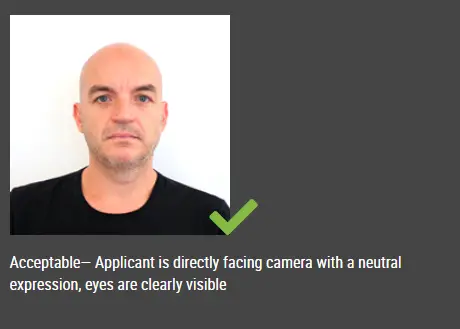
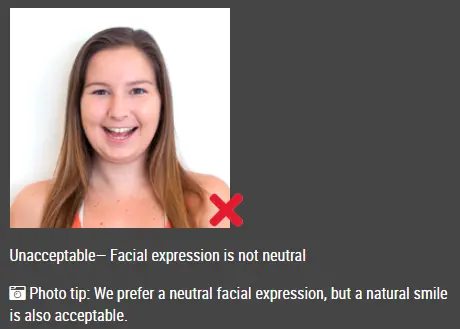
Step 5: Have a neutral facial expression

The government prefers that you have a neutral facial expression in your passport photos.

Smiling or having your mouth open is usually not acceptable, especially under the new international passport rules.

acceptable passport photo

Unacceptable passport photo


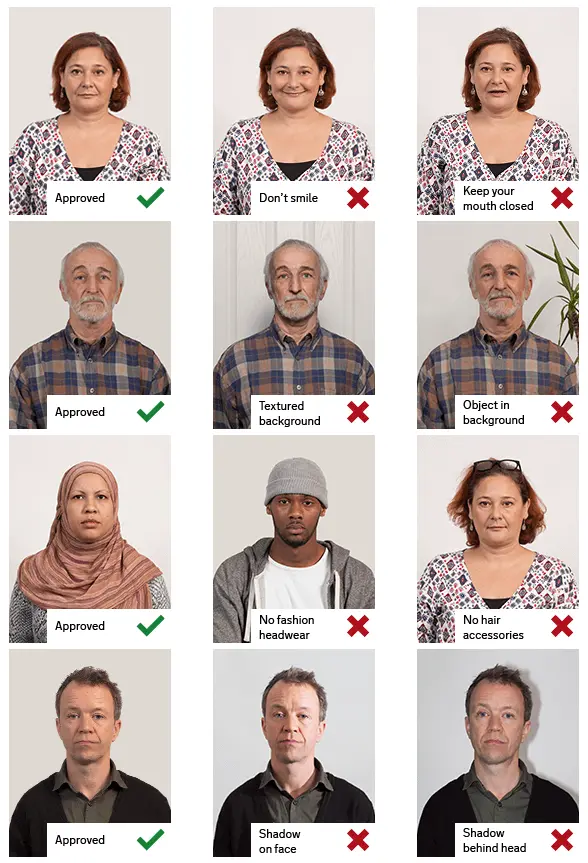
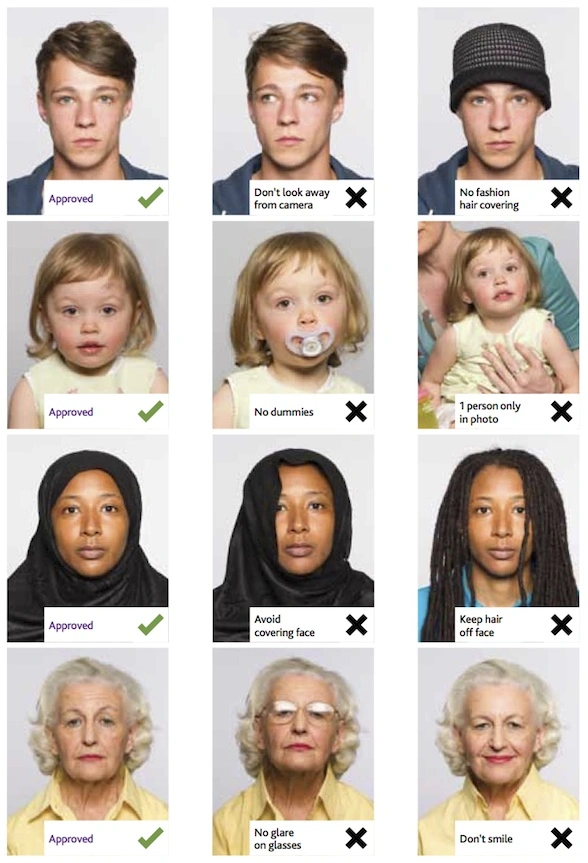
Good and bad examples of passport photos

Example of passport photos

Printed passport photos

Online Passport Photo Generator

Is this document useful?